Deleting Empty Sub-Folders
The following tutorial will demonstrate how to use FileMonkey to delete all empty folders on the target path.
An empty folder is a folder that contains no files or sub-folders (including hidden and system files and folders).
This will be done using the "Command Line" feature.
1. |
Right click on the FileMonkey icon and select "Run as administrator". Use the folder tree on the left of the main window to target the path that you wish to work on. This operation will delete all empty sub-folders on that path. |
2. |
Select the "Quick-Find, Command Line" menu item from the main window. The "Create/Run Batch File" window should now be open. |

3. |
From the menu bar at the top of this window, select the "File / Load Code" menu item. |
4. |
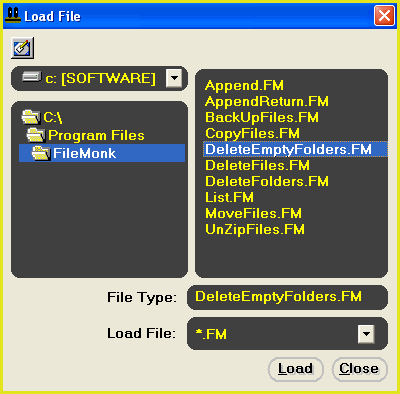
This will open the "Load File" dialogue box (Fig 2). Use this box to navigate to the folder that FileMonkey is installed in (This is usually something like: C:\Program Files\FileMonk) Select the file Delete Empty Folders.FM and click the "Load" button. |
5. |
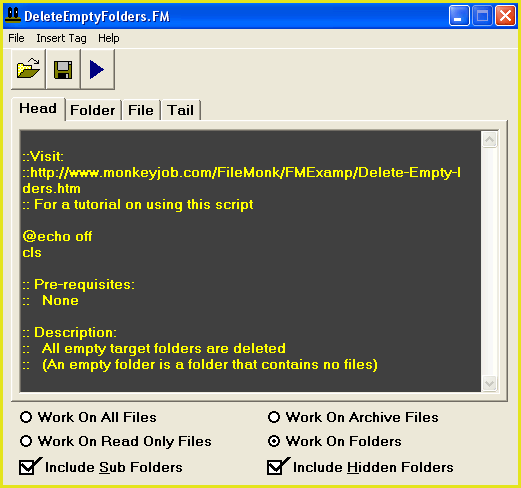
Please verify that you have loaded the correct script ("Delete Empty Folders.FM"). The command line window should now look like Fig 3 above. |
6. |
To delete all empty folders on the target path, select the "File / Compile And Run" menu item. |